
Support BBrain Family
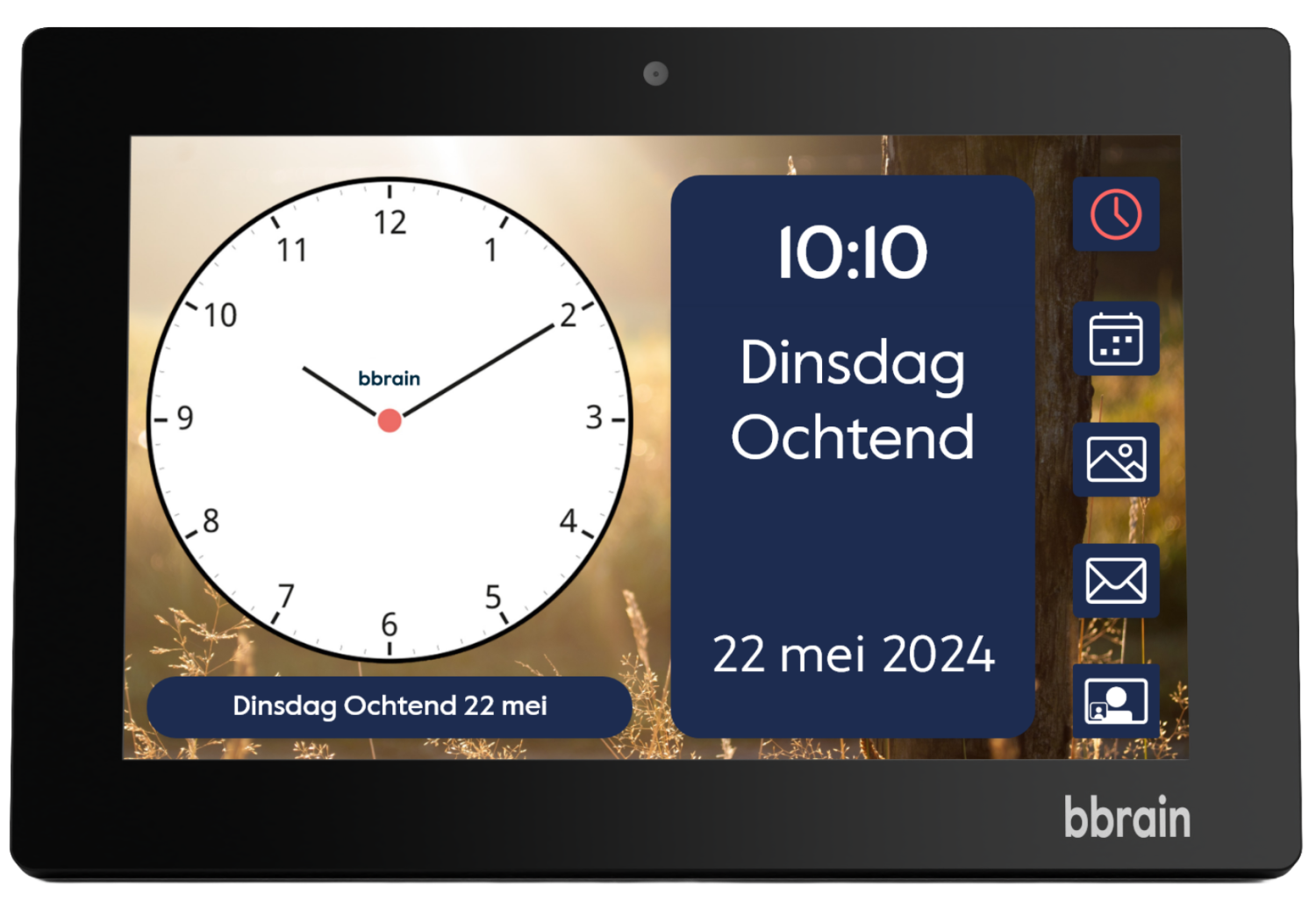
On this page, we have gathered the frequently asked questions about the BBrain Family.
Would you like to learn more about the features of the BBrain Family? Then visit the product page.
Manual BBrain Family
Subscription
To use the features of the BBrain Family (managing the calendar/activities, sending messages and photos, and video calling), you need a subscription. Without a subscription, you can only use the BBrain Family as a clock.
When you have an active subscription, your BBrain Family will also automatically receive updates with improvements and expansions. We will inform you in advance when major updates are implemented.
On this page, you can see an overview of the different subscriptions, including costs.
You can sign up for a subscription for your BBrain Family after you have received the device at home.
• Go to the BBrain website: www.bbrain.eu
• Click the profile icon in the top right corner. Log in or register if you don’t have an account yet.
• In the right column, choose “Purchase BBrain Family subscription.”
• Select the desired subscription and complete the payment.
• After payment, you will receive an automatic email with your license code. You need this license code to install your BBrain Family.
Send an email to info@bbrain.eu with the following information: your license code, your current subscription, and the desired subscription. Our customer service will send a confirmation once the subscription has been changed.
From Monday to Friday, you can also contact us by phone between 9:00–12:00 and 13:00–17:00: +31 (0)88 – 0080 130.
Go to www.bbrain.eu and log in to “My account.” In the right column, choose “Manage subscriptions.” Your subscriptions will be listed. Click “Cancel” for the relevant subscription.
Installation
After you have purchased a subscription, you will receive an automatic email with your license code.
When you connect the BBrain Family to the power supply after receiving it, the screens will guide you step by step through the installation. The installation takes about 5 minutes.
Below you can read which screens you will go through during the installation:
- Select the desired language.
- Connect the BBrain Family to the internet.
- Choose on the screen what applies to you.
Make a choice from the options offered on your BBrain Family screen. - License code.
The screen on the BBrain Family explains how to obtain a license code. Follow the instructions on the screen and enter your license code on the device. - Enter the details of the clock user and the primary relative.
Enter the requested information on the device. If you have reset the BBrain Family to factory settings and released your license code, this step will be skipped. The data linked to your license code will be retained. - Verification code.
The screen on the BBrain Family explains how to obtain the verification code. Follow the instructions on the screen and enter your verification code on the device.
After completing these steps on the device, the primary relative will receive an email. The email contains a link to activate the relative account in the BBrain Portal or, if you already have an account, a confirmation of your link to this BBrain Family.
The clock user is the person for whom the BBrain Family is intended. The BBrain Family is located with this person. There can only be one clock user.
The clock administrator and relatives use the BBrain Portal.
The clock administrator is the primary relative. This person has access to all the features and can add new relatives. There can only be one clock administrator.
Relatives have access to the features of the BBrain Family but cannot add new relatives. An unlimited number of relatives can be linked to a BBrain Family.
On the BBrain Family, you can personalize the following settings:
Clock Display:
- Interactive mode or passive mode
- Theme: choose the contrast and background of the screen
- Display: choose to show the time in analog, digital, or both analog and digital formats. The day, time of day, and date are always visible.
Screen:
- Brightness
- Night mode: after the set time, the brightness will automatically be reduced. This can contribute to better sleep.
Date, Time, Language:
- Here you can change the time zone and language.
Sound:
- Volume of clock notifications and call volume
- Speech speed
- Silent mode: the clock will make no sound during the specified time.
- Speak buttons: yes/no
- Speak the time every hour: yes/no
Photos:
- Maximum number of photos on the device (25, 50, 75, 100)
- Time between photo transitions
Calendar:
- "All-day" activities: set the time for the announcement of "all-day" activities, such as birthdays.
- Show current appointment in the "NOW-popup" in the calendar: yes/no.
Other Settings:
- Wi-Fi
- Factory settings: we advise you to always consult our customer service before resetting your device to factory settings.
WiFi/Internet Connection
An internet connection is necessary to use the features (agenda/activities, messages, photos, video calling). Without an internet connection, you can only use the BBrain Family as a clock.
- WiFi Network*
- The BBrain Family has an ethernet port. You can connect the device using an ethernet cable.
- It is not possible to insert a SIM card into the BBrain Family.
*If the user does not have a WiFi network at home, you can opt to use a MiFi router with a SIM card (mobile WiFi). The MiFi router shares the connection with other devices, such as your BBrain Family.
Follow the steps below to open the settings menu:
- For the BBrain Family with a black frame:
On the back of the device, you will see three buttons. Press the middle button. While holding this button, tap the analog clock face twice. - For the BBrain Family with a white frame:
On the right side of the device, you will see two buttons, a large button and a small button. Press the bottom part of the large button. While holding this button, tap the analog clock face twice.
In the settings menu, go to “Other Settings” and tap on “WiFi Settings.” Select the desired network and enter the password. Tap “Connect.”
Behind the cover, you will find the ethernet port. The user manual of the BBrain Family shows in section "1.2 Device Overview" which port is the ethernet port. Once you plug in an ethernet cable, the internet connection will be established automatically.
Open the settings menu on the BBrain Family, go to “Other Settings,” and tap on “WiFi” to check if the device is connected. If the device is not connected to your WiFi network, re-enter the password to restore the connection. Are you getting the message authentication error? Check carefully if you have entered the password correctly.
Device
The BBrain Family adapts to the needs of the user. You can switch between the interactive mode and the low-stimulus, passive mode at any time.
Interactive Mode:
- Detailed time display
- Calendar view, including reminders
- Messages
- Photos
- Two-way video calling
- Speaks the time, calendar events, and messages
- Can be switched to passive mode
Passive Mode:
- Detailed time display
- Reminders
- One-way video calling
- Speaks the time and reminders
Can be switched to interactive mode
In passive mode you cannot send individual photos. However, you can send a photo with a reminder for additional clarification.
The BBrain Family adapts to the user's needs. You can switch between the interactive mode and the passive mode at any time. This can be done in the clock's settings menu, under "Clock Display," where you select the desired mode.
When you switch from interactive mode to passive mode, the calendar overview, messages, photos, and the video calling feature are no longer displayed. In passive mode, only activities are shown.
When you switch from passive mode to interactive mode, activities are no longer displayed. In interactive mode, you will see a calendar overview, messages, photos, and have the option to video call.
For the BBrain Family with a black frame:
On the back of the device, you will see three buttons stacked vertically. Press and hold the middle button. While holding this button, tap twice on the analog clock face.
For the BBrain Family with a white frame:
On the right side of the device, you will see two buttons, one large and one small. Press the lower part of the large button. While holding this button, tap twice on the analog clock face.
The power supply works via the included power adapter. The information you have set up is saved when the clock is disconnected from the power outlet. The BBrain Family does not operate on batteries.
Features
If you subscribe to a plan that includes video calling, you can choose between 150, 500, or 1000 monthly calling minutes. Video calling occurs within the closed BBrain system and is independent of the services you have with your telecom provider.
Video calling is only possible via the BBrain Portal app. This feature is not available when logging in through a web browser.
In the countries listed below, the video calling feature on the BBrain Family cannot be used:
| Afghanistan |
| Algeria |
| Angola |
| Bangladesh |
| Benin |
| Burkina Faso |
| Burundi |
| Cameroon |
| Central African Republic |
| Chad |
| Comoros |
| Congo (Democratic Republic) |
| Congo (Republic) |
| Cuba |
| Djibouti |
| Eritrea |
| Ethiopia |
| Gabon |
| Gambia |
| Ghana |
| Guinea |
| Guinea-Bissau |
| Haiti |
| Iran |
| Iraq |
| Kenya |
| Liberia |
| Libya |
| Madagascar |
| Malawi |
| Mali |
| Mauritania |
| Mozambique |
| Namibia |
| Niger |
| Nigeria |
| Pakistan |
| Palestine (Territories) |
| Philippines |
| Rwanda |
| Sierra Leone |
| Somalia |
| South Sudan |
| Sudan |
| Syria |
Yes, in interactive mode, mutual video calling is possible. The clock user can contact their relatives through the BBrain Family, and relatives can contact the clock user via the BBrain Portal app.
In passive mode, video calling is only possible in one direction. Relatives can contact the clock user via the BBrain Portal app.
On the first day of each new month, you start again with the number of call minutes included in your subscription.
It doesn't matter whether the BBrain Family user calls a relative or a relative calls the BBrain Family user – the call duration is always deducted once from your monthly call minutes. In the BBrain Portal, under the "Video Calls" tile, you can always see how many call minutes you have left for the current month. This way, you can upgrade in time if needed. If you've used up all your minutes and haven't upgraded? No additional charges will apply, but video calling will be unavailable – after a timely warning message – until the new month begins.
BBrain Portal:
• Video calling is only possible via the BBrain Portal app, not through a web browser.
• After installing the BBrain Portal app, various pop-up notifications will appear. For video calling, it's necessary to grant access to the camera, microphone, and notifications.
• Have you disabled automatic app updates? Check in the App Store/Google Play Store if an update is available for the BBrain Portal app.
• Are you connected to multiple BBrain Family clocks? Check in the white bar on the BBrain Portal homepage if you've selected the correct clock user.
• Some VPN apps can interfere with video calling because your connection takes a detour. Temporarily turn off the VPN or exclude the app in your VPN settings (split tunneling).
BBrain Family:
• Check if the BBrain Family is connected to the internet. You can verify this under the "Video Calls" tile in the BBrain Portal or through the clock's settings menu (Other Settings → Wi-Fi). The internet connection can only be restored via the clock's settings menu. Go to Other Settings → Wi-Fi, tap the network name, re-enter the password, and click "Connect".
Note: Are you testing video calling while the smartphone/tablet and the BBrain Family are on the same Wi-Fi network and in the same room? This can cause interference. In that case, try moving to another room with your smartphone/tablet and enable 4G during the test.
The maximum number of photos displayed on the BBrain Family can be set by you. You can choose between 25, 50, 75, or 100 photos. Sending individual photos is only possible in interactive mode.
This is usually due to a disconnected WiFi connection on the BBrain Family. Open the settings menu on the BBrain Family. Tap on “Other Settings” and then on “WiFi Settings.”
If the device is not connected to your WiFi network, re-enter the password to restore the connection. If the device is connected to your WiFi network, please contact our customer service.
Are you linked to multiple BBrain Families as a relative? Check in the BBrain Portal if you have sent the item to the correct BBrain Family. On the homepage, above the tiles with different functions, there is a white bar. The name of the selected BBrain Family is displayed here. By tapping on the white bar, you can switch between the BBrain Families you are linked to.
Yes, the BBrain Family automatically adjusts for summer and winter time.
BBrain Portal/App
The BBrain Family helps you support your loved ones remotely and involve them more in your daily life. Through the free BBrain Portal app, you can remotely send agenda items/activities, photos, and messages to the BBrain Family and make video calls with the BBrain Family user.
Additionally, through the BBrain Portal, you manage the relatives linked to the BBrain Family and have access to the license information. The Portal is essential for remotely managing the BBrain Family and providing it with content.
You can download the BBrain Portal as an app on your smartphone or tablet. The app is available for both Apple and Android devices.
App Store (Apple)
Name: BBrain Portal.
Click here to download the app.
Google Play Store (Android)
Name: BBrain User Portal.
Click here to download the app.
You can also log in on a computer/laptop via https://portal.bbrain.eu.
After you install the BBrain Portal app, various pop-up notifications will appear. You must allow all of these. This allows the app to use the camera, microphone, and gallery and to send notifications. This is necessary to fully utilize all features of the app. If you click ‘Don’t Allow’ on a notification, the corresponding feature will not work.
If your app is displaying incorrectly, it’s best to log out and log back in. If you have disabled the automatic updating of apps, it’s also important to check in your App Store/Google Play Store to see if an update is available for the BBrain Portal.
If logging back in did not help, delete the app from the App Store/Google Play Store and reinstall it. The settings and content are linked to your account, so you won’t lose them when you delete the app from your smartphone or tablet. Are you still experiencing incorrect display? Please contact our customer service.
You can change the password of your BBrain Portal in your account. Click on the arrow next to your profile picture at the top right. Go to my profile and click on ‘’click here to change your password.
Open the app/web browser. Click on ‘Forgot password?’ and enter the email address associated with your account. Then click on ‘Reset password.’ You will immediately receive an email with further instructions. Check your spam box if the email does not appear in your inbox.
Relatives
An unlimited number of relatives can be linked to a BBrain Family. There are no additional costs for this. Each relative needs their own account, which is set up through an invitation sent by the clock administrator.
The clock administrator can add new relatives to the BBrain Family. Follow these steps:
- Log in to the BBrain Portal with your own account.
- Select the “Relatives” tile.
- Tap “Add relative.” Enter the email address, first name, and last name of the new relative, and click “Invite.”
- Select the features you want to activate for this relative and click “Save.” You can set which features each relative has access to individually.
- The new relative will receive an email to confirm their account.
Yes, you can be linked to an unlimited number of BBrain Families as a relative. This could include multiple family members or even multiple clients if you work in healthcare. On the BBrain Portal homepage, you can switch between the BBrain Families you are linked to by tapping or clicking on the white bar.
Couldn't find the answer to your question?
We’re happy to help. You can contact us using one of the options below:
By email
Contact us at:
info@bbrain.eu
Please include your license code so we can assist you quickly and accurately.
By phone
Our support team is available Monday to Friday between 09:00 – 12:00 and 13:00 – 17:00
Call us on:
+31 (0)88 – 0080 130